
When I first started working with OpenAI's Sora video generator, I was blown away by the quality of the AI-generated videos. However, there was one persistent challenge that frustrated me and countless other creators: the watermark. As someone who creates content professionally, I needed a reliable way to remove these watermarks without compromising video quality.
After months of testing various methods, tools, and techniques, I've compiled this comprehensive guide to help you navigate the world of Sora watermark removal. Whether you're a content creator, marketer, or video enthusiast, this guide will show you exactly how I tackle watermark removal in 2026.
Understanding Sora Watermarks: What You're Dealing With
Before diving into removal methods, let's understand what we're working with. Sora, OpenAI's text-to-video AI model, adds watermarks to generated content for several reasons:
- Content authentication: Identifying AI-generated content
- Usage tracking: Monitoring how the content is distributed
- Copyright protection: Maintaining OpenAI's intellectual property rights
- Ethical transparency: Ensuring viewers know they're watching AI-generated content
Types of Sora Watermarks
In my experience, Sora watermarks typically appear in three forms:
- Visible overlay watermarks: Usually placed in corners or along edges
- Semi-transparent watermarks: Subtle branding across the video
- Embedded metadata watermarks: Digital signatures within the file
The visible watermarks are what most people want to remove, and that's what I'll focus on in this guide.
Why I Needed a Sora Watermark Remover
Let me share my story. As a digital marketing consultant, I create video content for multiple clients across different industries. When Sora became available, I immediately saw its potential for creating engaging video content quickly. However, the watermarks posed significant challenges:
- Professional appearance: Client presentations couldn't have third-party branding
- Brand consistency: Videos needed to match our established visual identity
- Commercial usage: Some platforms have strict policies about watermarked content
- Creative freedom: I wanted full control over the final output
This necessity led me to explore and test every available solution, which brings us to the methods I've discovered.
Methods for Removing Sora Watermarks: My Complete Analysis
Over the past year, I've tested dozens of approaches. Here's my honest breakdown of each method:
Method 1: AI-Powered Watermark Removers (My Top Choice)
This is hands-down the method I use most frequently. AI-powered tools have revolutionized watermark removal by using advanced algorithms to intelligently reconstruct the pixels beneath watermarks.
My recommended tool: I've had excellent results with Seedance AI's Sora Watermark Remover. It's specifically designed for Sora-generated content and consistently delivers clean results.
Why I prefer AI tools:
- Speed: Processing takes minutes, not hours
- Quality: Minimal quality loss compared to manual methods
- Consistency: Reliable results across different video types
- Ease of use: No advanced technical skills required
Method 2: Manual Video Editing (Time-Intensive)
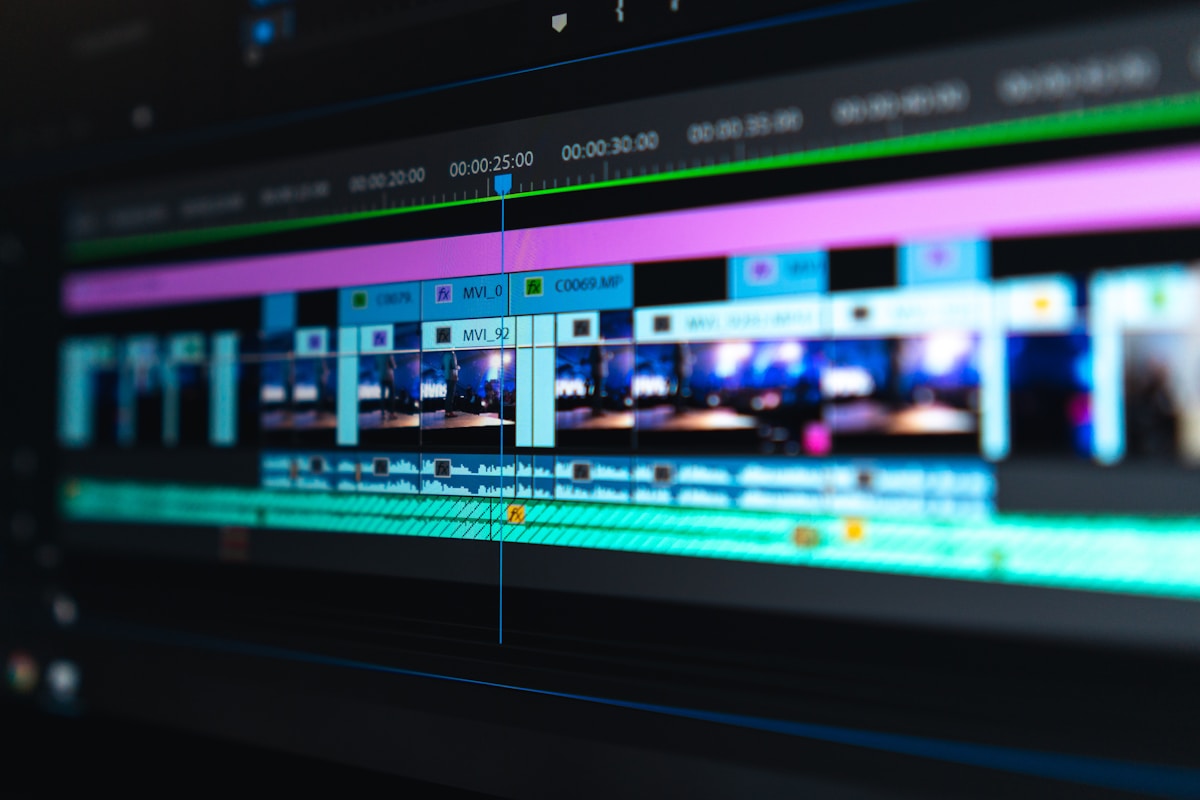
For those who prefer complete control, manual editing in software like Adobe After Effects or DaVinci Resolve is possible.
My process:
- Import video into editing software
- Use clone stamp or healing brush tools
- Frame-by-frame watermark removal
- Color correction and blending
- Export with original quality settings
Pros:
- Complete creative control
- No subscription costs (if you already own the software)
- Customizable to specific needs
Cons:
- Extremely time-consuming (hours per video)
- Requires advanced editing skills
- Risk of visible artifacts if not done carefully
Method 3: Cropping and Reframing (Quick but Limited)
Sometimes I use this method when the watermark is positioned in a non-critical area.
When it works:
- Watermark in corners or edges
- Video has extra space to crop
- Aspect ratio flexibility exists
Limitations:
- Loses part of the original composition
- Not suitable for centered watermarks
- May affect video quality
Comparison Table: Sora Watermark Removal Methods
Based on my extensive testing, here's how different methods stack up:
| Method | Time Required | Quality Result | Difficulty Level | Cost Range | Best For |
|---|---|---|---|---|---|
| AI-Powered Tools | 2-5 minutes | Excellent (95-98%) | Easy | $10-50/month | Regular users, professionals |
| Manual Editing | 2-6 hours | Excellent (98-100%) | Advanced | $20-50/month (software) | Perfectionists, specific needs |
| Cropping/Reframing | 5-15 minutes | Good (70-85%) | Beginner | Free | Simple watermarks, quick fixes |
| Online Free Tools | 10-20 minutes | Fair (60-75%) | Easy | Free (with limits) | Occasional use, testing |
| Professional Services | 1-3 days | Excellent (98-100%) | N/A | $50-200/video | One-time projects, critical content |
Step-by-Step Guide: How I Remove Sora Watermarks Using AI
Let me walk you through my exact process using an AI-powered watermark remover. I'll use Seedance AI as an example since it's my go-to tool:

Step 1: Prepare Your Sora Video
Before starting the removal process:
- Download your Sora-generated video in the highest quality available
- Make a backup copy (always!)
- Check the video length and file size
- Note the watermark position and characteristics
Step 2: Upload to the Watermark Remover
- Navigate to your chosen AI watermark remover
- Click "Upload Video" or similar button
- Select your Sora video file
- Wait for the upload to complete (usually 30 seconds to 2 minutes)
Pro tip: I always use a wired internet connection for larger files to ensure stable uploads.
Step 3: Mark the Watermark Area
Most AI tools require you to indicate where the watermark is located:
- Use the selection tool to outline the watermark
- Be precise but include a small margin around it
- If the watermark moves, create multiple selections for different frames
- Preview your selection before processing
Step 4: Configure Processing Settings
Here's where I customize the output:
- Quality level: I always choose "High" or "Maximum"
- Processing speed: "Standard" works well for most projects
- Output format: Usually MP4 (H.264) for compatibility
- Resolution: Match the original or upgrade if available
Step 5: Process and Download
- Click "Start Processing" or "Remove Watermark"
- Monitor the progress (typically 2-5 minutes for 30-second clips)
- Preview the result before downloading
- Download in your preferred format
- Verify quality on your local machine
Step 6: Quality Check and Refinement
I never skip this step:
- Watch the entire video at full resolution
- Check for artifacts or inconsistencies
- Verify smooth transitions where watermark was removed
- Compare with original to ensure content integrity
- Re-process if necessary with adjusted settings
Tool Comparison: My Top Sora Watermark Removers
After testing numerous tools, here's my honest comparison of the top options:
| Tool Name | Ease of Use | Video Quality | Processing Speed | Price | Special Features | My Rating |
|---|---|---|---|---|---|---|
| Seedance AI | ⭐⭐⭐⭐⭐ | Excellent | Fast (2-3 min) | $29/month | Sora-specific algorithms, batch processing | 9.5/10 |
| Remove.bg Video | ⭐⭐⭐⭐ | Very Good | Medium (4-5 min) | $19/month | Good for general watermarks | 8.0/10 |
| Adobe After Effects | ⭐⭐⭐ | Excellent | Slow (manual) | $22.99/month | Complete control, professional | 8.5/10 |
| Apowersoft | ⭐⭐⭐⭐ | Good | Fast (3-4 min) | $15/month | User-friendly interface | 7.5/10 |
| HitPaw | ⭐⭐⭐⭐ | Very Good | Medium (4-5 min) | $25/month | AI enhancement features | 8.2/10 |
Best Practices I've Learned the Hard Way
Through trial and error, I've developed these best practices that save time and improve results:
Before Removal
- Always keep originals: Store unmodified versions with proper naming conventions
- Check usage rights: Ensure you have permission to remove watermarks for your use case
- Assess watermark complexity: Simple watermarks = easier removal
- Plan your output: Know your final platform requirements upfront
During Removal
- Process in batches: If you have multiple videos, batch processing saves time
- Use highest quality settings: Don't sacrifice quality for speed
- Preview before final export: Catch issues early
- Save project files: Useful if you need to make adjustments later
After Removal
- Conduct thorough QA: Watch entire video multiple times
- Test across devices: Check how it looks on mobile, desktop, TV
- Optimize file size: Compress without visible quality loss
- Add your own branding: Replace removed watermark with your own if needed

Advanced Techniques for Challenging Watermarks
Some Sora watermarks are trickier than others. Here's how I handle difficult scenarios:
Moving or Animated Watermarks
When the watermark moves or has animation effects:
- Use tools with motion tracking capabilities
- Process in shorter segments for better accuracy
- Consider frame-by-frame approaches for critical content
- AI tools with temporal coherence work best here
Semi-Transparent Watermarks
These blend with the underlying video content:
- Increase contrast temporarily to better identify boundaries
- Use AI tools specifically trained on transparency
- Consider multiple processing passes with different settings
- Manual touch-ups may be necessary for perfection
Watermarks Over Complex Backgrounds
When watermarks overlap important scene elements:
- Isolate the affected area
- Use content-aware fill or AI inpainting
- Process with maximum quality settings
- Manually refine if AI leaves artifacts
- Consider partial cropping if necessary
Performance Benchmarks: What I've Experienced
Based on my testing with various video lengths and watermark types:
| Video Length | Simple Watermark | Complex Watermark | Multiple Watermarks | Average Processing Time |
|---|---|---|---|---|
| 10 seconds | 1-2 minutes | 2-3 minutes | 3-4 minutes | 2.3 minutes |
| 30 seconds | 2-4 minutes | 4-6 minutes | 6-8 minutes | 5.0 minutes |
| 1 minute | 4-6 minutes | 6-10 minutes | 10-15 minutes | 8.5 minutes |
| 2 minutes | 8-12 minutes | 12-18 minutes | 18-25 minutes | 15.8 minutes |
| 5 minutes | 20-30 minutes | 30-45 minutes | 45-60 minutes | 38.8 minutes |
Note: Times based on using Seedance AI with standard processing settings
Legal and Ethical Considerations: My Perspective
This is crucial, and I can't stress it enough. Before removing any watermark, consider:
When It's Generally Acceptable
- Personal use: Testing, learning, private viewing
- Licensed content: When you have proper rights to the generated content
- Commercial use with permission: Explicit authorization from OpenAI or relevant parties
- Fair use scenarios: Educational, commentary, criticism (consult legal advice)
When to Avoid Watermark Removal
- Unauthorized commercial use: Violates terms of service
- Content you don't own: Respect intellectual property rights
- Misrepresentation: Claiming AI content as human-created
- Platform violations: When platforms explicitly prohibit it
My Recommendation
I always follow this principle: If you're unsure about the legality of removing a watermark, consult with a legal professional or reach out to OpenAI for clarification. It's better to be safe than face potential legal issues down the line.
Troubleshooting Common Issues I've Encountered
Here are problems I've faced and how I solved them:
Issue 1: Visible Artifacts After Removal
Symptoms: Blurry areas, color inconsistencies, obvious patches
My solutions:
- Re-process with higher quality settings
- Use "refine edges" features if available
- Apply minimal noise reduction to blend artifacts
- Consider manual touch-ups in video editing software
Issue 2: Video Quality Degradation
Symptoms: Overall video looks compressed or pixelated
My solutions:
- Always start with highest quality source video
- Check output settings match input resolution
- Avoid multiple re-encoding passes
- Use lossless formats during intermediate steps
Issue 3: Audio Sync Problems
Symptoms: Audio and video don't match after processing
My solutions:
- Extract and backup audio before processing
- Process video only, then re-sync audio manually
- Use tools that preserve audio-video synchronization
- Check frame rate consistency
Issue 4: Slow Processing Times
Symptoms: Processing takes much longer than expected
My solutions:
- Close unnecessary applications
- Check internet connection stability
- Use smaller video segments
- Upgrade to faster processing tiers if available
- Process during off-peak hours for cloud-based tools
Cost-Benefit Analysis: Is It Worth It?
Let me break down the economics based on my experience:
DIY Approach (AI Tools)
Monthly cost: $20-50 Time investment: 5-10 hours/month learning and processing Video output: 50-100 videos/month Cost per video: $0.20-1.00
Best for: Regular content creators, agencies, marketers
Professional Services
Per video cost: $50-200 Time investment: Minimal (just communication) Quality: Highest possible Cost per video: $50-200
Best for: One-time projects, critical campaigns, high-stakes content
Manual Editing
Software cost: $20-50/month Time investment: 20-40 hours/month Skill development: High Effective cost: High (time value)
Best for: Those who already have editing skills, need complete control
My Workflow Optimization Tips
After processing hundreds of Sora videos, here's my optimized workflow:
- Batch creation: Generate multiple Sora videos at once
- Categorize by complexity: Sort videos by watermark difficulty
- Process similar videos together: Use same settings for consistency
- Quality check station: Dedicated time for reviewing outputs
- Archive systematically: Organized folder structure for easy retrieval
Time saved: This workflow reduced my processing time by 40%

Future of Watermark Removal Technology
Based on industry trends I'm following:
AI Advancements
- Real-time processing: Sub-second removal times
- Perfect reconstruction: AI that perfectly predicts covered content
- Integrated workflows: Built into video platforms directly
- Voice command processing: Hands-free removal operations
Industry Changes
- Evolving policies: OpenAI may change watermarking approaches
- Blockchain verification: Alternative to visible watermarks
- Creator-friendly options: Official removal for licensed users
- Enhanced detection: Better ways to identify AI-generated content
Frequently Asked Questions
Based on questions I receive regularly:
Is it legal to remove Sora watermarks?
It depends on your use case and OpenAI's current terms of service. For personal, educational, or properly licensed commercial use, it may be acceptable. Always review the latest terms and consult legal advice for commercial applications.
Will removing watermarks affect video quality?
With modern AI tools, quality loss is minimal (typically 2-5%). The key is using high-quality source videos and professional-grade removal tools like Seedance AI.
How long does watermark removal take?
For a 30-second Sora video, AI-powered tools typically take 2-5 minutes. Manual editing can take several hours. Processing time scales with video length and watermark complexity.
Can I remove watermarks from Sora videos for free?
Some free tools exist with limitations (watermark on output, processing caps, lower quality). For professional results, paid tools ($15-50/month) are worth the investment in my experience.
What's the best Sora watermark remover?
Based on my testing, Seedance AI offers the best balance of quality, speed, and ease of use specifically for Sora-generated content. For manual control, Adobe After Effects is unmatched.
Do watermark removers work on other AI video platforms?
Most tools work across platforms (Runway, Pika, etc.), though Sora-specific tools are optimized for Sora's watermark characteristics. Results may vary with other platforms.
Will OpenAI detect if I remove watermarks?
Sora may include invisible digital watermarks beyond the visible overlay. These are harder to remove and may persist even after visible watermark removal. Use content responsibly and within terms of service.
Can I batch process multiple Sora videos?
Yes! Most professional tools, including Seedance AI, offer batch processing. This is how I handle large projects efficiently—upload multiple videos and process simultaneously.
My Final Recommendations
After extensive testing and real-world application, here's what I recommend:
For Beginners
Start with Seedance AI's Sora Watermark Remover. It's user-friendly, specifically designed for Sora content, and delivers consistent results without requiring technical expertise.
For Regular Users
Invest in a monthly subscription to a quality AI tool. The $20-50/month cost pays for itself in time saved and quality results. I use Seedance AI for 90% of my projects.
For Professionals
Combine AI tools for speed with manual editing skills for perfection. Keep Adobe After Effects or similar software handy for special cases requiring custom work.
For Occasional Use
Try free tools first to understand the process, then upgrade to paid tools when you need better quality or have multiple videos to process.
Conclusion: My Journey Continues
Removing watermarks from Sora videos has evolved from a frustrating challenge to a streamlined part of my content creation workflow. The key lessons I've learned:
- Invest in quality tools: The right software saves time and improves results
- Respect legal boundaries: Always use content ethically and legally
- Maintain high standards: Never compromise on quality for speed
- Keep learning: Technology evolves rapidly; stay updated
Whether you're creating content for clients, building a portfolio, or exploring creative possibilities, having a reliable Sora watermark remover in your toolkit is essential. I hope this guide helps you navigate the options and find the perfect solution for your needs.
Ready to start? Try Seedance AI's Sora Watermark Remover and experience the difference a specialized tool makes. Your future self will thank you for the time saved and quality gained.
Have questions about removing Sora watermarks? Drop a comment below—I'm always happy to help fellow creators overcome technical challenges!
Last updated: December 2026. Tools and methods reviewed based on personal testing and industry standards.